
OneDrive not syncing? Solutions for Windows and Mac
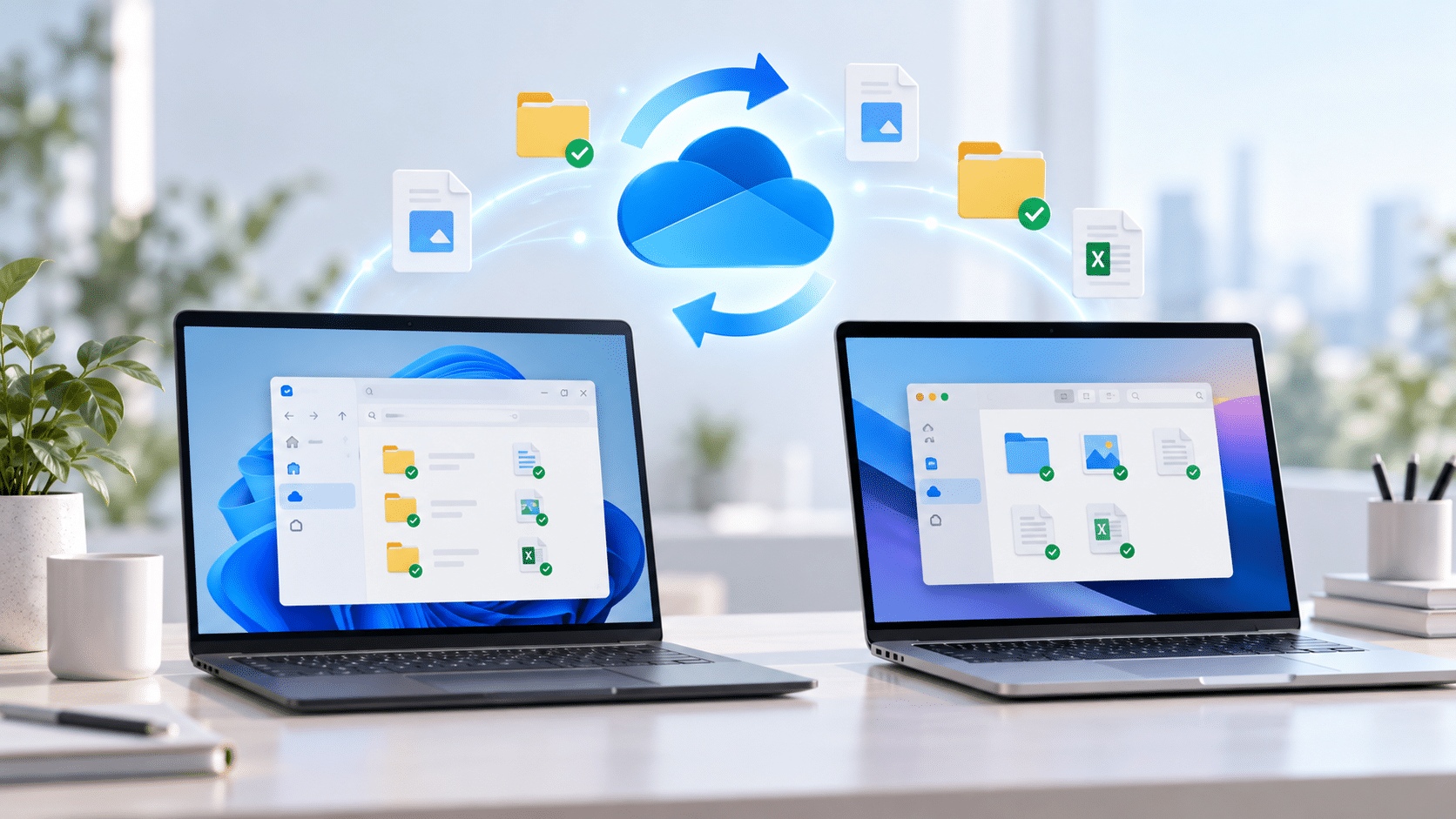
In several Microsoft 365 environments I came across recently, synchronisation had not been set up yet. Employees downloaded documents, edited them on their computer and then had to upload them again. That costs extra time and increases the risk of different versions.
With a good setup you work directly with your files from File Explorer in Windows or Finder on your Mac. In this blog you can read what to check if that does not work yet.
1. OneDrive not syncing? Start with these checks
Check the basics first before you change settings:
- Is OneDrive switched on? Look for the cloud icon in the Windows taskbar or the menu bar of your Mac.
- Are you signed in with the right account? Your personal Microsoft account and your business Microsoft 365 account are different environments.
- Has syncing been paused? Open the OneDrive menu and resume syncing if it is paused, or restart the OneDrive app.
- Do you have a working internet connection? You usually notice when you have no internet, but then OneDrive does not work either. And believe me, this happens more often than you think.
- Do you see an error message? Click the OneDrive cloud icon to see which file or setting needs attention. There may be two versions of one file; you can then choose which version to keep.
- Is there enough storage space? Full Microsoft cloud storage can block uploading and syncing.
Do you see no OneDrive icon at all? Then open the app via the Start menu on Windows or via Spotlight on your Mac.
Practical tip: also open the file concerned in the browser. That way you check whether it is reachable online and whether you see the expected version there.
2. SharePoint folder not visible in File Explorer or Finder?
A missing folder does not automatically mean OneDrive is broken. It may also be that the SharePoint folder has not yet been linked to your OneDrive.
The OneDrive app takes care of syncing both your personal work files and linked SharePoint folders. So just signing in to OneDrive is not enough to make all shared business documents visible.
You can add a SharePoint folder as follows:
- Open the SharePoint site in your browser.
- Go to the document library, for example Documents.
- Select the folder you want to add.
- Choose Add shortcut to OneDrive.
- Open your business OneDrive in File Explorer or Finder and check whether the folder appears.
This does not create a separate copy. You work with the same shared files as your colleagues. Microsoft recommends this method when it is available. The shortcut is linked to your account and also appears on other devices where your business OneDrive is set up.
3. OneDrive not syncing on Windows
Open OneDrive via the Start menu and check whether you are signed in with your business email address.
Then open File Explorer. Your personal work files are usually under OneDrive – [organisation name]. SharePoint folders you have added as a shortcut can be found there too. Libraries linked via the Sync button may appear separately under the organisation name.
Is an expected folder missing? Open the OneDrive settings and check under Account → Choose folders whether it is selected.
Then test with a small, recognisable file:
- Place the file in the intended folder.
- Wait until OneDrive indicates that syncing is complete.
- Check in the browser whether the file is in the right place.
That way you check straight away whether uploading from File Explorer works.
4. OneDrive not syncing on Mac
On a Mac you also use the OneDrive app to access files from Finder.
Open OneDrive via Spotlight, sign in with your business Microsoft 365 account and go through the setup. Then open Finder and look for your business OneDrive.
Check via the cloud icon in the menu bar whether OneDrive is active, whether syncing has been paused and whether there are error messages. Also keep OneDrive and macOS up to date; Microsoft mentions this as part of solving sync problems on the Mac.
Is your own OneDrive visible, but is a shared SharePoint folder missing? Then check the link as described in step 2.
5. Are you using ‘Sync’ as well as a OneDrive shortcut?
SharePoint offers two ways to make files available on your computer:
- Add shortcut to OneDrive: the link follows your account.
- Sync: the library is linked on the computer concerned.
Do not use these methods side by side for the same document library. That can cause the message that you are already syncing a shortcut from this library.
So check first what has already been set up. Want to remove a superfluous shortcut? Use Remove shortcut. Do not delete the shared folder or the files themselves.
6. Files visible, but not available without internet?
A file you see in File Explorer or Finder is not always fully downloaded. With Files On-Demand files stay online until you open them. That saves space on your computer.
Working on the road or at a location without a reliable internet connection? Right-click the files or folder you need and choose Always keep on this device.
Wait until the download has finished before you go offline. This option exists on both Windows and Mac.
7. OneDrive keeps processing changes
Does OneDrive stay busy for a long time? Open the sync menu and see whether there is progress or whether one file is causing an error.
Also check how many folders you have linked. A large number of files or a sizeable first upload can take time. So link mainly the libraries and folders you need. For SharePoint syncing, Microsoft likewise advises checking the number of synced files.
Does the problem persist? Note the exact error message and which files are not being updated. That allows your administrator to investigate more specifically what is going wrong.
Set up properly: saving files without uploading manually
Is syncing working? Then you can save a received PDF directly in a client file or keep a new document in the right project folder. OneDrive then processes the changes automatically.
Please note: syncing works both ways. If you delete a file from a linked SharePoint folder, that deletion is also processed online and colleagues can lose the file from their folder.
So make clear agreements within your organisation: personal work files in OneDrive, shared business documents in a suitable shared place in SharePoint.
Need help with business OneDrive or SharePoint syncing?
Are business documents missing in File Explorer or Finder? Do changes get stuck? Or are employees still downloading and uploading manually?
SCHIPPER.TECH helps entrepreneurs and SMEs set up and manage Microsoft 365. I check the syncing, access to shared files and the setup on Windows and Mac.
Get in touch via schipper.tech to discuss your situation.

By Martijn Schipper — Data & IT consultant at SCHIPPER.TECH.
SCHIPPER.TECH®
Gedempte zalmhaven 342
3016DT Rotterdam
010 322 01 70
contact@schipper.tech
CoC: 91972833
VAT: NL865835998B01